メインコンテンツへスキップ

Amazonから書誌情報をTextwellへ取り込むブックマークレット

bibinfo-exporter/script.js at main · goryugocast/bibinfo-exporterを参考にAmazonから書誌情報をへ取り込むブックマークレットを作成した。

直接Obsidianに取り込むのは自分の運用に合わないためTextwellへ追記するように。

こちらは書籍専用で、著者名や出版社、出版日などを取り込む。

Amazonの書誌情報をTextwellの追記するブックマークレット

javascript: (() => {
     const dest_path = 'notes'; //ファイルを格納するパス
     const amazon_id = 'namaraiicom-22'; // アフィリエイトID
 
     let p = document.getElementById("productTitle"); //書籍のタイトルの処理
     p = p ? p : document.getElementById("ebooksProductTitle");
 
     const title = p.innerText.trim();
 
     let asin = document.getElementById('ASIN'); //ASIN番号の処理
     const a = asin ? asin.value : document.getElementsByName('ASIN.0')[0].value;
 
     const url = `https://www.amazon.co.jp/exec/obidos/ASIN/${a}/${amazon_id}/`;
     const link = `[${title}](${url})`;
 
     let image = document.getElementById("imgTagWrapperId"); //書影の処理
     image = image ? image : document.getElementById("ebooksImgBlkFront");
     const imageurl = image.querySelector("img").getAttribute("src");
 
     const c = document.getElementsByClassName('author');
     const pub = [];
     const ct_list = []; // ctの各要素を保存する配列を新たに定義
 
     for (let g = 0; g < c.length; g++) {
         const at = c[g].innerText.replace(/\r?\n/g, '').replace(/,/,'');
         const pu = at.match(/\(.+\)/);
         const ct = at.replace(/\(.+\)/,'').replace(/ /g,'');
         ct_list.push(ct); // ctを配列に追加
         pub.push(`${pu} [[${ct}]]`);
     }
 
     const author = pub.join(' ');
 
     let h1title = `『${title}』`;
     h1title = h1title.replace(/[\\/:*?"<>|.]/g, char => ({
         ':': ':', '\\': '\', '/': '/', '?': '?',
         '*': '*', '"': '”', '<': '<', '>': '>',
         '|': '|', '.': '.'
     }[char]));
 
     const mdimage = `[![|100](${imageurl})](${url})`;
 
     // 登録情報欄を取得
     let detail = document.getElementById('detailBullets_feature_div');
     if (!detail) {
         const subdoc = document.getElementById("product-description-iframe").contentWindow.document;
         detail = subdoc.getElementById("detailBullets_feature_div");
     }
     const detailtext = detail.innerText;
     const pubdata = detailtext.split(/\n/);
     pubdata[2] = pubdata[2]?.slice(10);  // 出版社
 
     const date = new Date().toLocaleDateString('sv-SE');
     const lines = `---%0D%0Atitle: "${h1title}"%0D%0Adate%3A%20${date}%0D%0Aupdated%3A%20${date}%0D%0Andl%3A%0D%0Atags%3A%20読書メモ%0D%0Adraft%3A%20true%0D%0A---%0D%0A${mdimage}%0D%0A-%20${link}%0D%0A-%20${author}%0d%0A-%20${pubdata[2]}%0D%0A%0D%0A%23%23 関連・思い出した本 %0d%0A%23%23 読書メモ%0d%0A`;       
 
     const app = `textwell:///add?text=${lines}`;
     window.open(app);
 })();

こちらは一般的な商品の画像と商品名を取り込む。

Amazon商品の商品名と画像へのリンクをTextwellに追加するブックマークレット

javascript: (() => {
     const dest_path = "notes"; //ファイルを格納するパス
     const amazon_id = "namaraiicom-22"; // アフィリエイトID
 
     let p = document.getElementById("productTitle") || document.getElementById("ebooksProductTitle"); //書籍のタイトルの処理
     const title = p.innerText.trim();
 
     const asinElement = document.getElementById('ASIN') || document.getElementsByName('ASIN.0')[0]; //ASIN番号の処理
     const a = asinElement.value;
 
     const url = `https://www.amazon.co.jp/exec/obidos/ASIN/${a}/${amazon_id}/`;
     const link = `[${title}](${url})`;
 
     const image = document.getElementById("landingImage");
     const imageurl = image.getAttribute("src");
 
     // 自分が必要なパラメータに変換
     let h1title = title.replace(/[\\/:*?"<>|.]/g, char => ({
         ':': ':', '\\': '\', '/': '/', '?': '?',
         '*': '*', '"': '”', '<': '<', '>': '>',
         '|': '|', '.': '.'
     }[char]));
 
     const mdimage = `[![|100](${imageurl})](${url})`;
     const lines = `${mdimage}%0D%0A%0D%0A${link}%0D%0A`;
 
     const app = `textwell:///add?text=${lines}`;
     window.open(app);
 })();

関連記事

Obsidianのデイリーノートへ追記するTextwellのアクション

ObsidianのデイリーノートへTextwell から追記するためのアクション。TextwellからObsidianのデイリーノートを書く方法 - Jazzと読書の日々を参考にさせていただき以下の修正を行った。 デイリーノートのディレクトリ構成(YYYY/MM/YYYY-MM-DD.mdとした) 新規作成ではなく追記に変更 1 2 3 4 5 6 7 8 9 10 11 12 13 14 15 16 17 18 19 20 // デイリーノートのルートディレクトリ Root = "journal"; url = "obsidian://"; d = new Date(); y = d.getFullYear(); m = Zero(d.getMonth()+1); // デイリーノートのディレクトリ構成対応(YYYY/MM/YYYY-MM-DD.md) Folder = Root + "/" + y + "/" + m; Title = y + "-" + m + "-" + Zero(d.getDate()); if(Folder) Title = Folder + "/" + Title; if(T.text) url+= "new?content=" + encodeURIComponent("\n") + T.stdin.text + "&file=" + encodeURIComponent(Title) + "&append"; T(url,{option:"cutWhole"}); function Zero(x){ return ("00"+x).slice(-2); }

Textwell

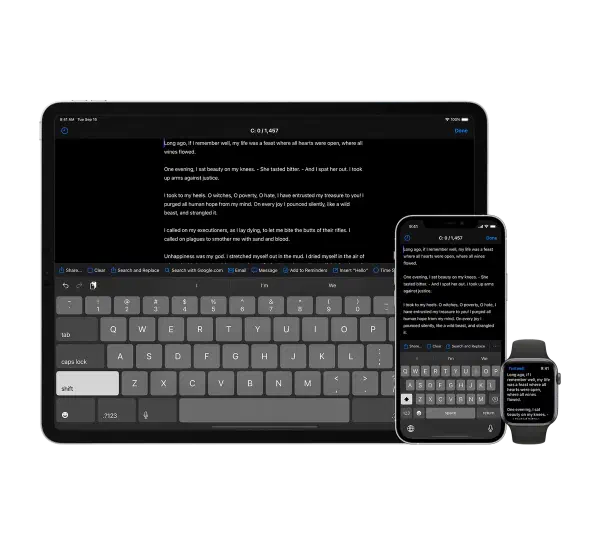
Textwell - The Modeless Textbox for iPhone, iPad, iPod touch, Mac, and Watch. メモ、メッセージ、ブログ、検索、投稿など、あらゆる文章作成タスクに使用できる多目的テキストエディタ ファイリングやスタイリングのための機能はないが、JavaScriptベースのカスタマイズ可能なアクション、自動履歴、クラウド同期などをサポートしており、シンプルで拡張性が高い Mac版、iOS版、AppleWatch版がある Textwell | URL Schemes 自作のアクションなど # ソートして重複行を削除するTextwellのアクション Obsidianのデイリーノートへ追記するTextwellのアクション Amazonから書誌情報をTextwellへ取り込むブックマークレット

ObsidianのURLスキーム

Using obsidian URI - Obsidian Help ノートを開く open obsidian://open?vault=my%20vault&file=path%2Fto%2Fmy%20note my vaultのpath/to/my noteを開く ノートを検索する search obsidian://search?vault=my%20vault&query=MOC my vaultでMOCを検索する ノートを作成する new obsidian://new?vault=my%20vault&path=path%2Fto%2Fmy%20note my vaultのpath/to/my note`を新規に作成する オプション vaultボールト名またはボールト ID のいずれか name作成するファイル名。これが指定されている場合、ファイルの場所は「新しいメモのデフォルトの場所」になる file名前を含むボールトの絶対パス。指定した場合はnameは上書きされる path 絶対パス content(オプション) メモの内容 silent(オプション) 新しいメモを開かない場合に指定 append(オプション) ファイルが存在する場合、そのファイルへ追加する overwrite(オプション) 既存のファイルが存在する場合は上書きする x-success(オプション) x-callback-urlを指定する 利用例 # Obsidianのデイリーノートへ追記するTextwellのアクション AlfredからObsidianの保管庫を検索する

Hugoのショートコードをうまく使い回す方法

Hugoには他のCMSではよくある、機能を拡張するためのプラグインを提供する仕組みがない。 このため、あるテーマの中に便利なショートコードがあったとして、それを別のテーマで使用しようとした場合、 テーマディレクトリ/layouts/shortcodes配下のショートコードのソースを、別のテーマの/layouts/shortcodes配下、またはルート配下の/layouts/shortcodesへコピーする ショートコードにスタイルが設定されている場合、スタイルシートの中から必要な部分を抜き出し、別のテーマのスタイルシートへコピーする という煩雑な手順が必要となるが、先日、以下のショートコードのインストール手順を読んでいたら、うまい方法でショートコードを提供していた。 mfg92/hugo-shortcode-gallery: A theme components with a gallery shortcode for the static site generator hugo. まずショートコードのコードをテーマディレクトリ配下へcloneする。その後、config.tomlでテーマを以下のように指定する。 theme = ["your-main-theme", "hugo-shortcode-gallery"] そもそもテーマを複数指定できることを知らなかったが、この設定によりyour-main-themeテーマに加えhugo-shortcode-galleryテーマも参照されることになる。 そして、hugo-shortcode-gallery配下は以下のようなファイル構成になっている。 hugo-shortcode-gallery ├── LICENSE.md ├── README.md ├── assets │ └── shortcode-gallery │ ├── filterbar.sass │ └── font-awesome │ ├── compress-alt-solid.svg │ ├── expand-alt-solid.svg │ └── license.txt ├── config.toml ├── layouts │ └── shortcodes │ └── gallery.html └── static └── shortcode-gallery ├── jquery-3.7.0.min.js ├── justified_gallery │ ├── LICENSE │ ├── jquery.justifiedGallery.js │ ├── jquery.justifiedGallery.min.js │ ├── justifiedGallery.css │ └── justifiedGallery.min.css ├── lazy │ ├── jquery.lazy.js │ └── jquery.lazy.min.js └── swipebox ├── css │ ├── swipebox.css │ └── swipebox.min.css ├── img │ ├── icons.png │ ├── icons.svg │ └── loader.gif └── js ├── jquery.swipebox.js └── jquery.swipebox.min.js 14 directories, 23 files テーマと言ってもlayouts配下にあるのはショートコードのみである。そしてassetsとstaticディレクトリ配下にショートコードで使用するファイルだけを置くというのは、汎用的にショートコードを提供する方法として手軽で良いと思った。

TemplaterプラグインのテンプレートからMoment.jsを使用する

ObsidianのTemplaterプラグインでデイリーノートを生成しているが、テンプレートではIntroduction - Templaterを参考に前後のデイリーノートへ移動するためのリンクを追加するようにしていた。 << [[2025-02-04]] | [[2025-02-06]] >> 上記のテンプレートでは、当日のデイリーノート作成ではうまくいくが、未来や過去日付のデイリーノートを作成した場合、その日付の前後のリンクではなく実行した当日を基準にリンクが追加されるため、本来の目的を果たせない。 Templaterプラグインのドキュメントを読んだところテンプレートの中からMoment.jsの オブジェクトにアクセスできるようなので、以下のように修正した。 << [Invalid date](/journal/Invalid date) | [Invalid date](/journal/Invalid date) >> これにより、Calendarプラグインで任意の日をクリックすると、その日の前後のリンクが設定されたデイリーノートのひな形を生成することができる。

Webページから本文らしき部分を抽出する

さまざまなパターンの日本語文章をデータとして欲しいケースがあったので、指定したURLから本文らしき内容を抽出するスクリプトを書いた。 1 2 3 4 5 6 7 8 9 10 11 12 13 14 15 16 17 18 19 20 21 22 23 24 require 'playwright' require 'readability' require 'html2text' # 指定したURLから本文らしき内容を抽出して返却する def html2text(url) Playwright.create(playwright_cli_executable_path: 'npx playwright') do |playwright| playwright.chromium.launch(headless: true) do |browser| begin page = browser.new_page page.goto(url, waitUntil: 'load') doc = Readability::Document.new(page.content) sleep 1 return {:title => page.title, :content => Html2Text.convert(doc.content) } rescue return {:title => nil, :content => nil } end end end end url = ARGV.shift doc = html2text(url) puts "#{doc[:title]}\n#{doc[:content]}" Javascriptでコンテンツを生成するページに対応するためPlaywrightを使用。 使用したライブラリ # cantino/ruby-readability: Port of arc90’s readability project to Ruby YusukeIwaki/playwright-ruby-client: Playwright client for Ruby soundasleep/html2text_ruby: A Ruby component to convert HTML into a plain text format.